
Get AI feedback on your table tennis technique
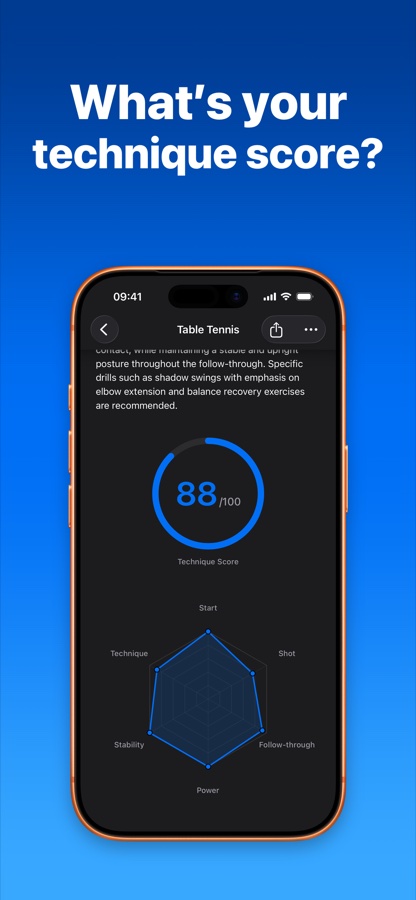
Start with a video of your stroke. SportArc AI Coach turns a supported table tennis action into 3D movement and feedback you can review before your next practice.
Look at the movement behind the shot
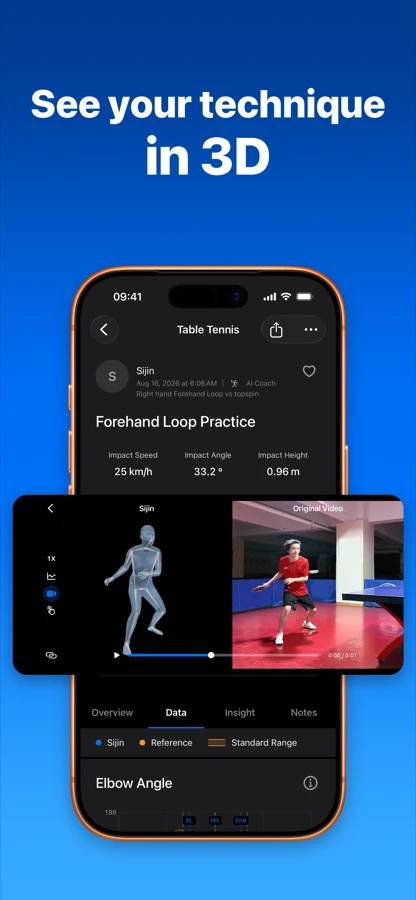
Review key positions around the stroke and inspect movement in 3D. The report brings together technique observations, movement measures, strengths, and areas to work on.
- See key positionsReview the movement before impact, at impact, and at the end of the stroke.
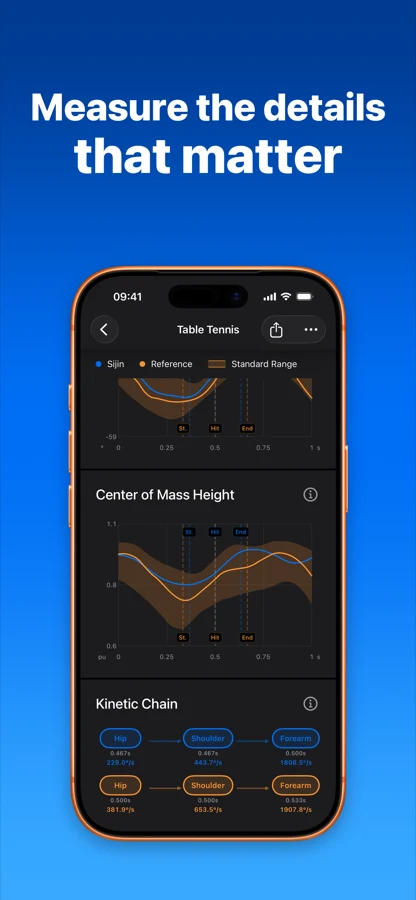
- Understand movement measuresExplore measures such as joint angles, center of mass, and the power chain alongside the video.
- Take feedback into practiceRead the strengths and areas to work on, then choose a focus for your next session.
Choose the stroke and the moment to analyze
-
Choose a stroke
Choose the supported stroke type in AI Coach.
-
Import your video
Select your recorded table tennis action.
-
Choose the impact frame
Select the moment you want the app to analyze.
-
Identify the player
Place the box around the player in the recording.
-
Review the analysis
Start the analysis, then explore the 3D result and feedback.
Keep the important body parts unobstructed
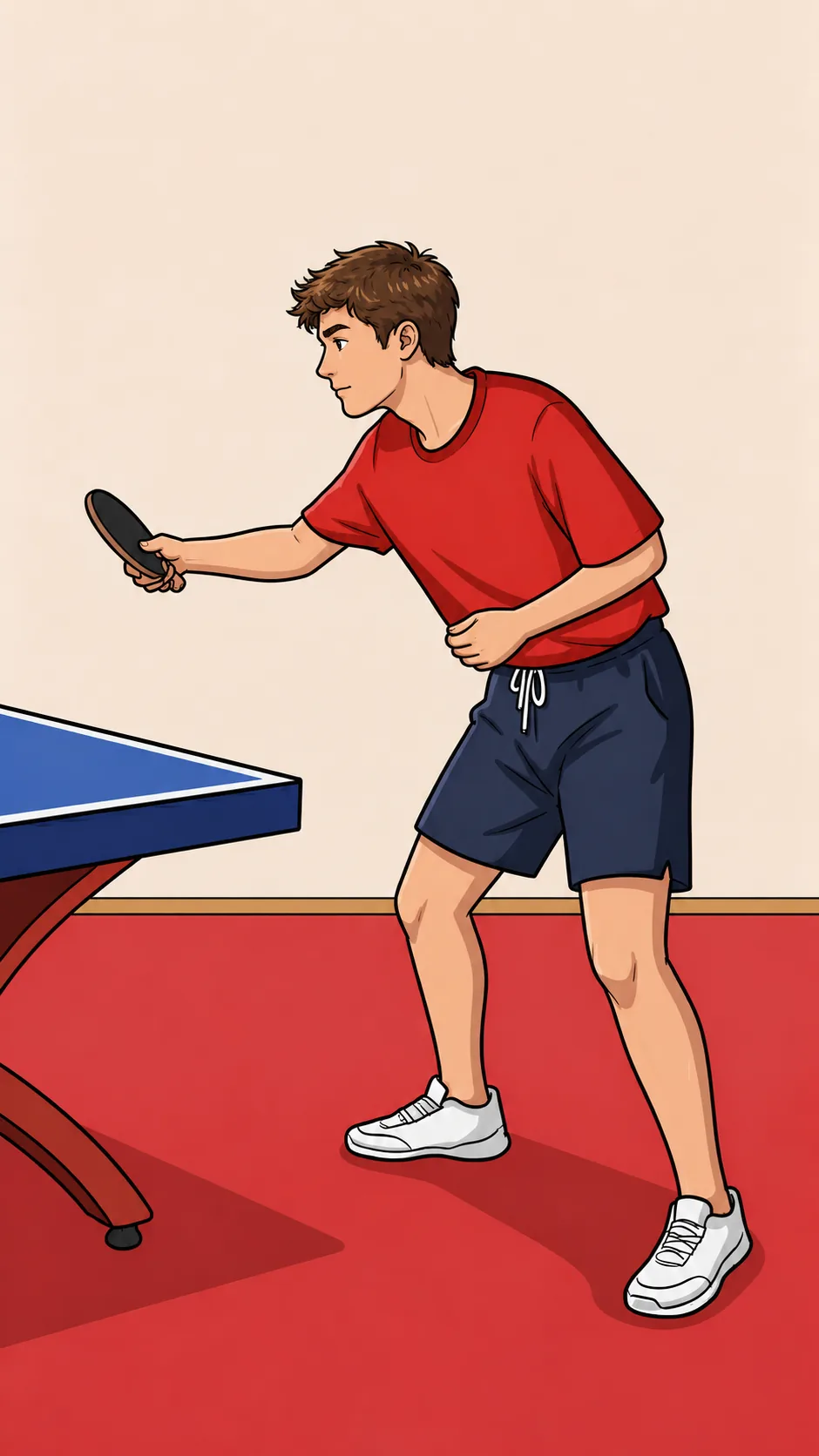
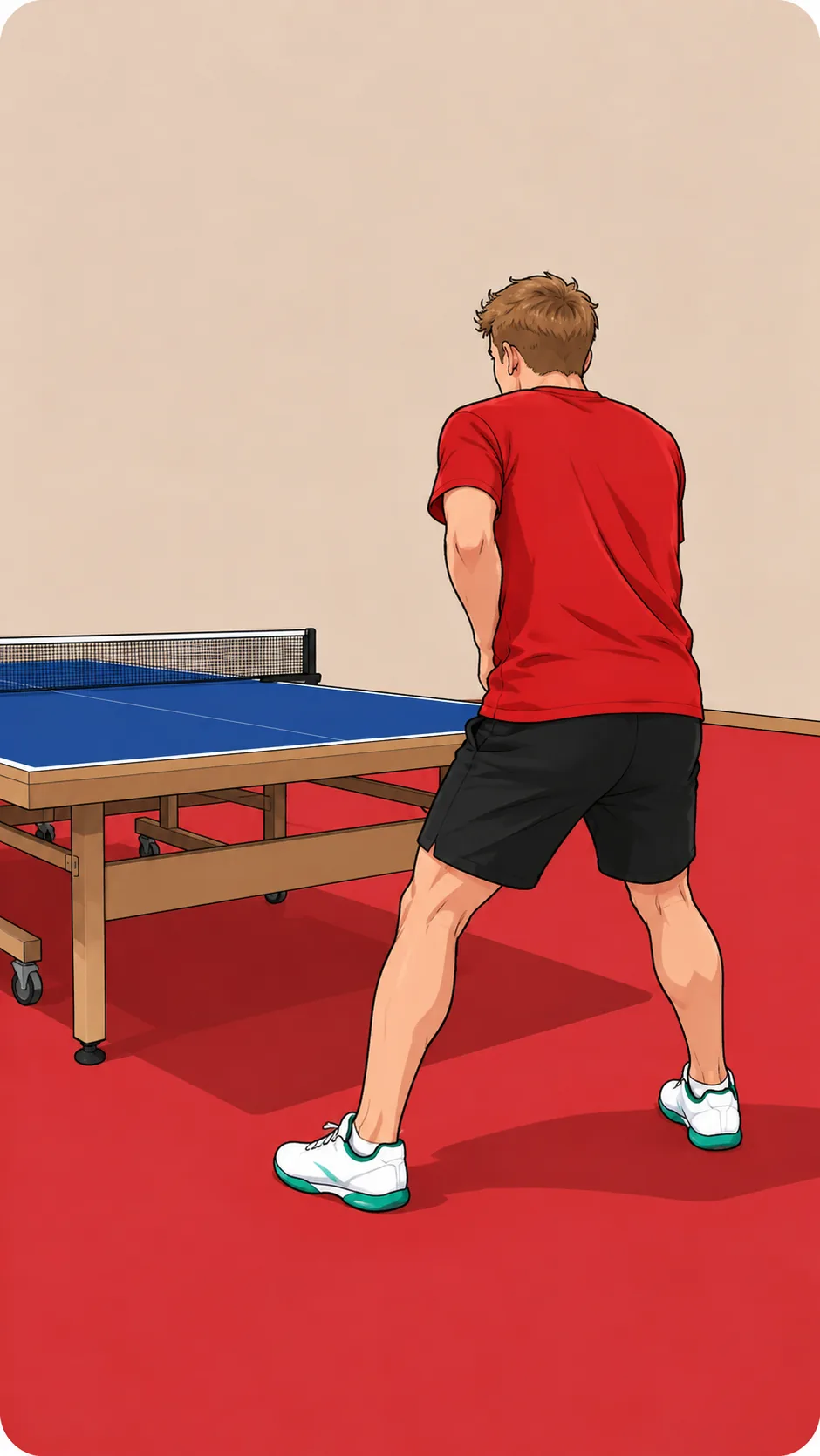
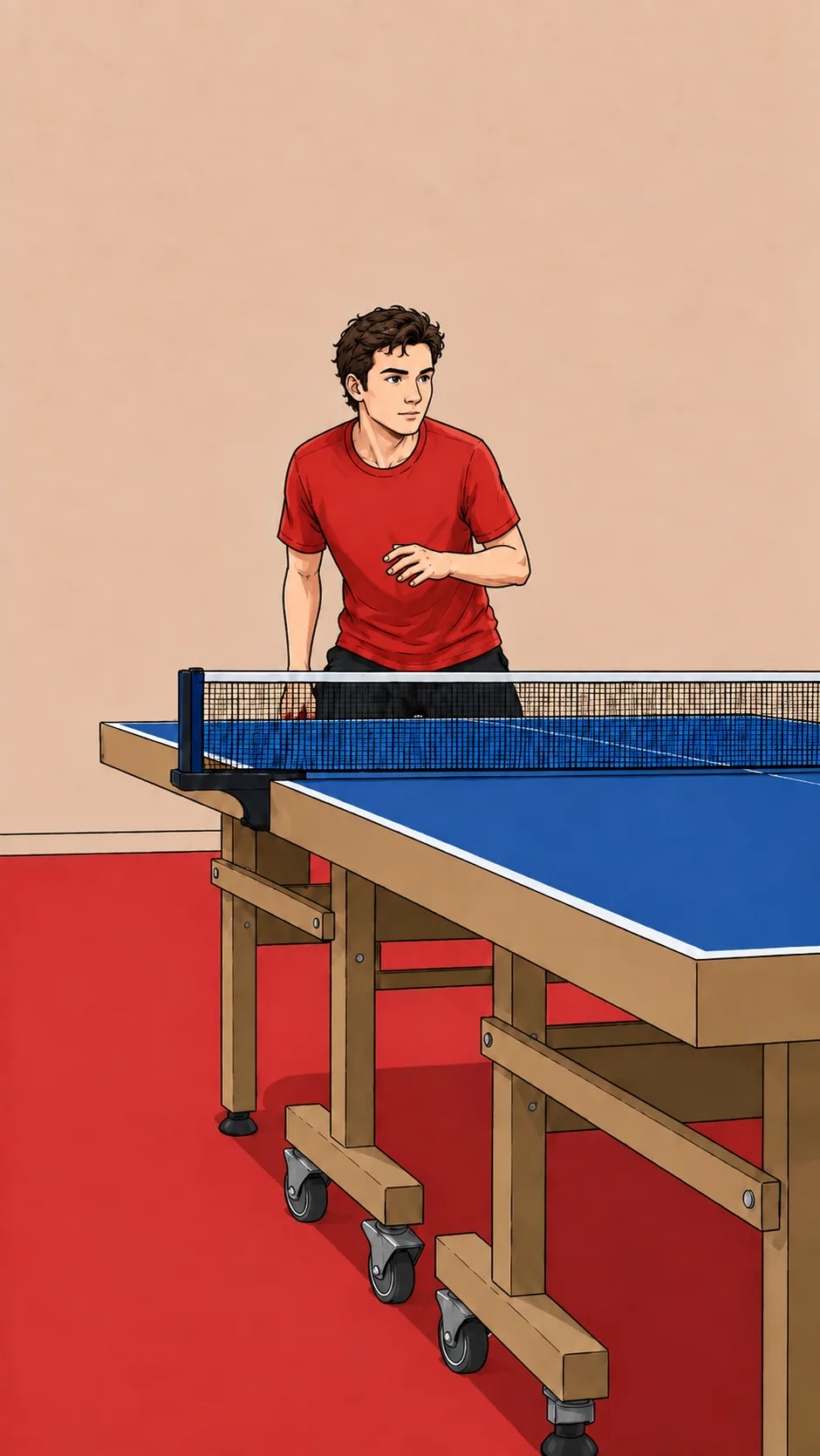
Choose an angle that keeps the racket hand and lower body visible. Obstruction can hide the movement you want to understand. Compare the recommended views with the examples to avoid.
See the AI Coach recording guide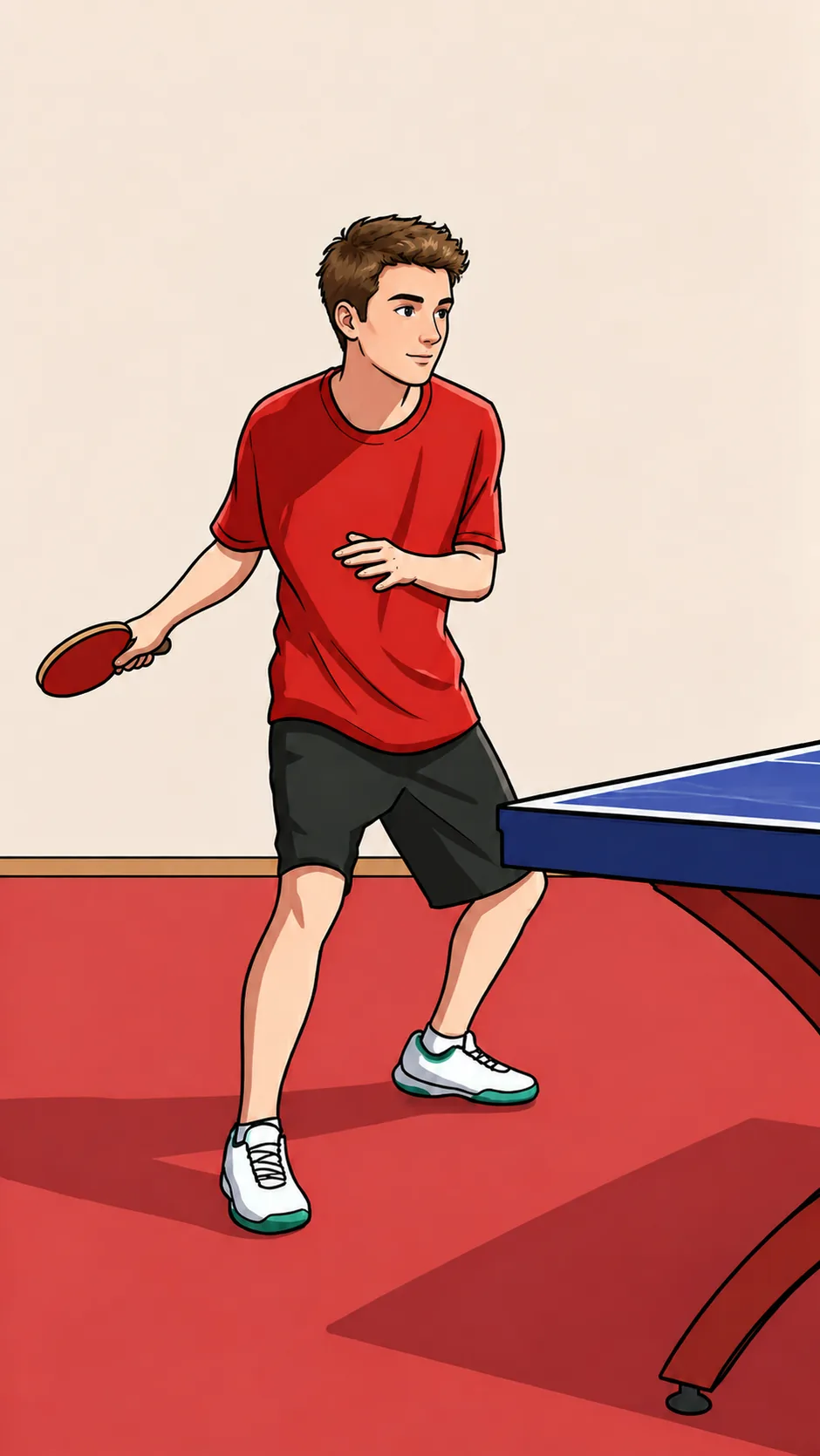
Need to compare two recorded movements?
Motion Compare is SportArc’s separate table tennis workflow for comparing two videos. Choose the handedness, identify the impact moments, and select the player in each recording. Use the same clear-view checks for both videos.
AI Coach starts with one supported action. Motion Compare gives you a way to inspect two recorded movements together.
Questions before you start
Find the workflow that fits your recording.
Is this a general AI chat coach?
This workflow starts from a table tennis video and a selected stroke. The result includes movement views and feedback about that action.
Can it coach tennis or badminton technique?
AI Coach currently focuses on table tennis. Tennis and badminton recordings can use Auto Cut for rally clips.
Does one result guarantee that my technique is correct?
Use the feedback alongside your own review and coaching. The recording and the selected moment affect what can be analyzed.
How is this different from Match Review?
AI Coach focuses on an action. Match Review focuses on a table tennis match and its placements and statistics.