
Record a video SportArc can work with
Choose your sport and feature below. What needs to stay visible depends on whether you want rally clips, technique feedback, or match data.
Before you record
- Choose the sport and the feature you want to use. The recording requirements depend on the result you want.
- Record a video on your phone before importing it into SportArc.
- Check a short sample before filming a full session. Make sure the important parts of the action stay visible.
Tennis Auto Cut
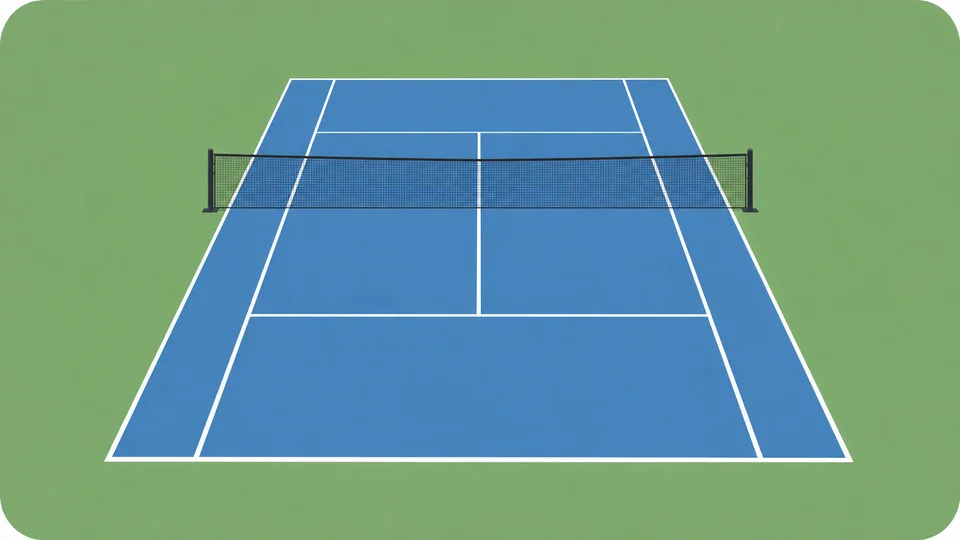
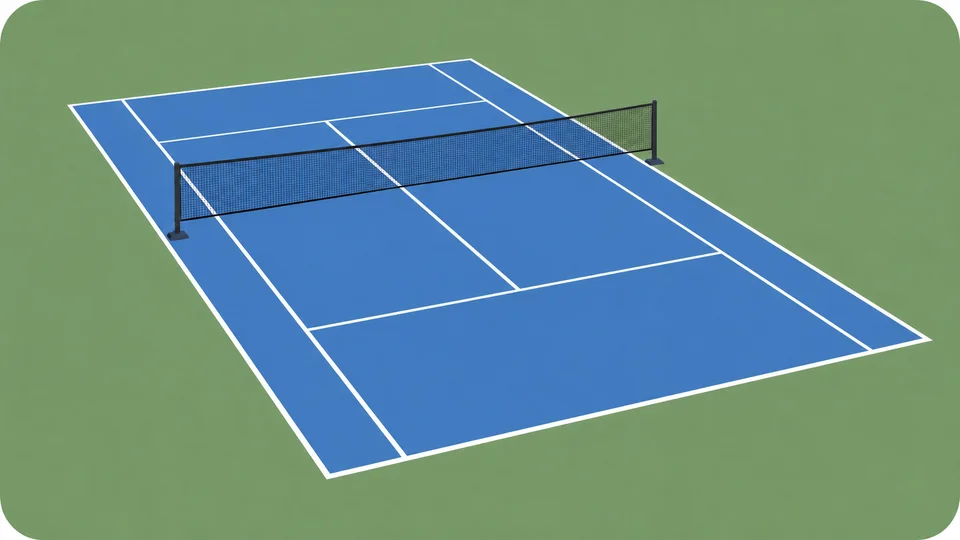
Before recording a full tennis session, film a short sample and check it in playback:
- Check the frame. Keep the court and players on both sides in view as they move through a rally.
- Follow the ball. Make sure the ball and players remain clear throughout the sample, not just in the first frame.
- Adjust and test again. If the action leaves the frame or is obscured, change the view and check another short recording.
When you start Auto Cut, choose Tennis and select Singles or Doubles to match your recording, then import your video.
Badminton Auto Cut
Check that the shuttle is visible against the surroundings and that the far side of the court stays in frame. For doubles, allow room for all four players to move. Other players and nearby courts should not obscure the action you want to cut.
Select Singles or Doubles to match the recording when you start Auto Cut.
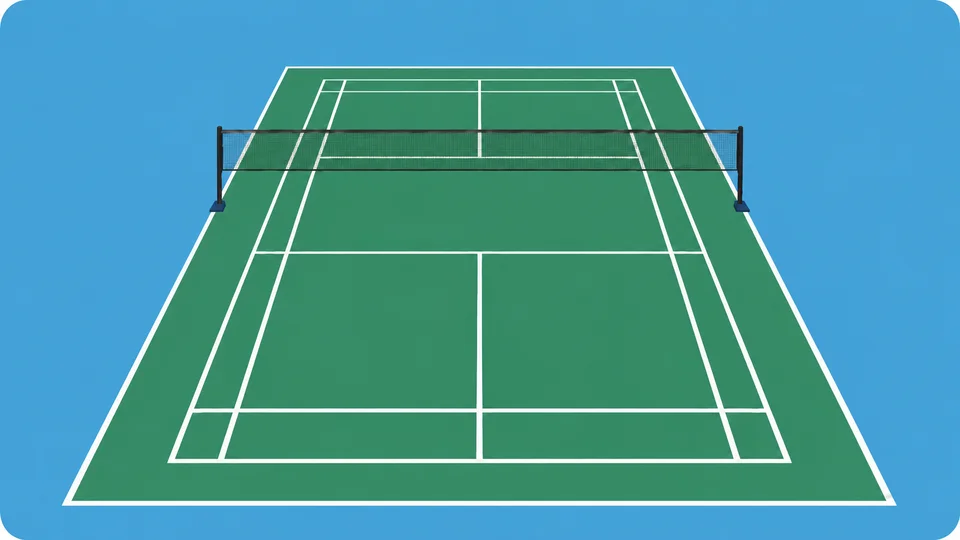
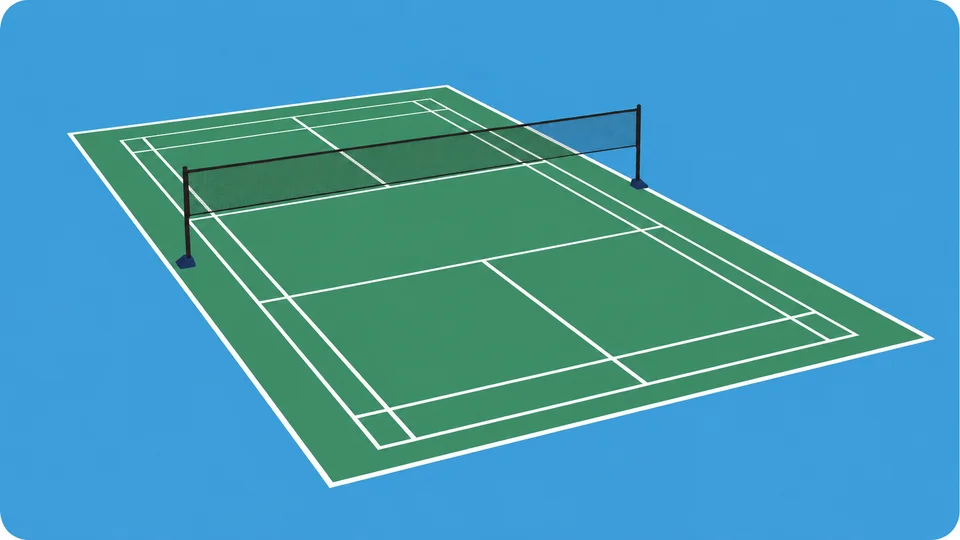
Table tennis Auto Cut
Choose a view that keeps the ball, the table, and the players on both sides clear. The app offers several example angles for Auto Cut. Match Review has its own fixed-camera requirements, so choose the guide for the result you want.
Select Singles or Doubles to match the recording when you start Auto Cut.
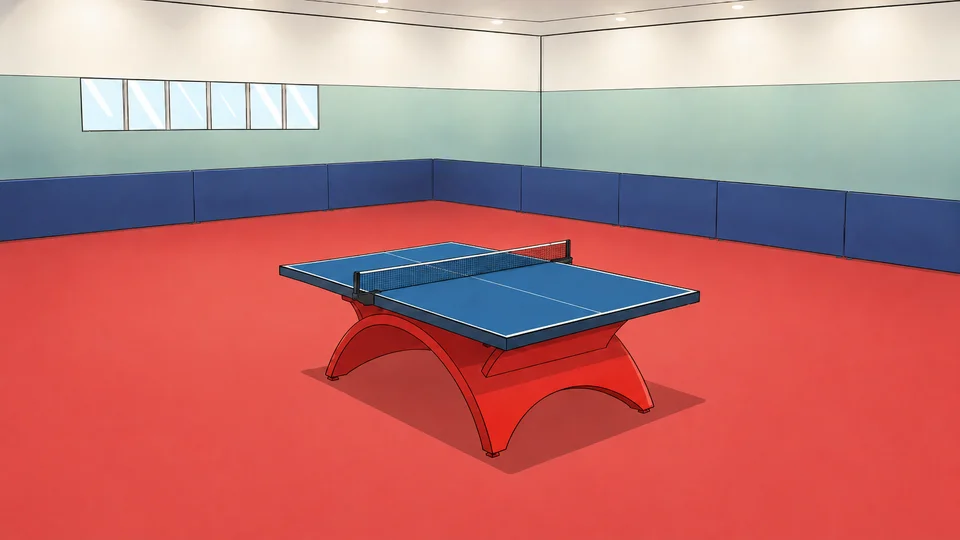
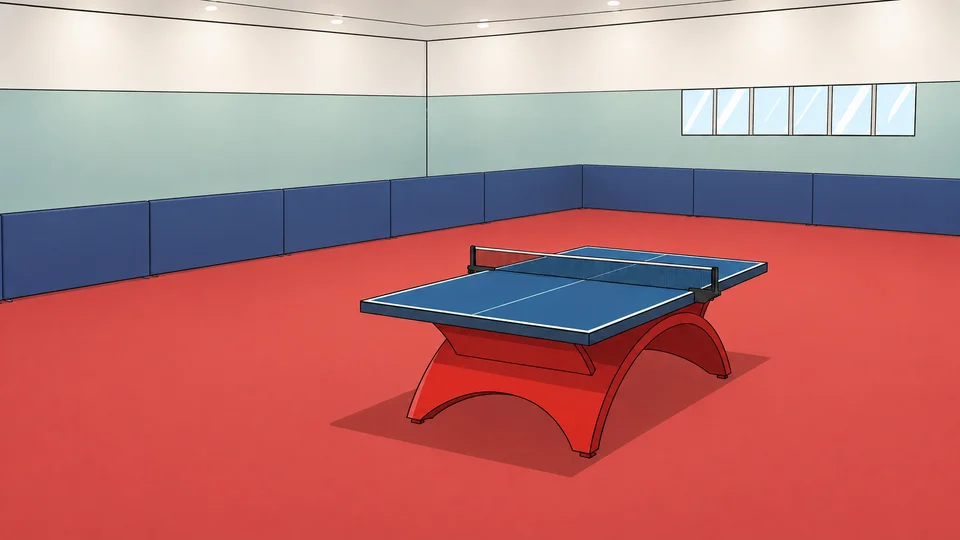
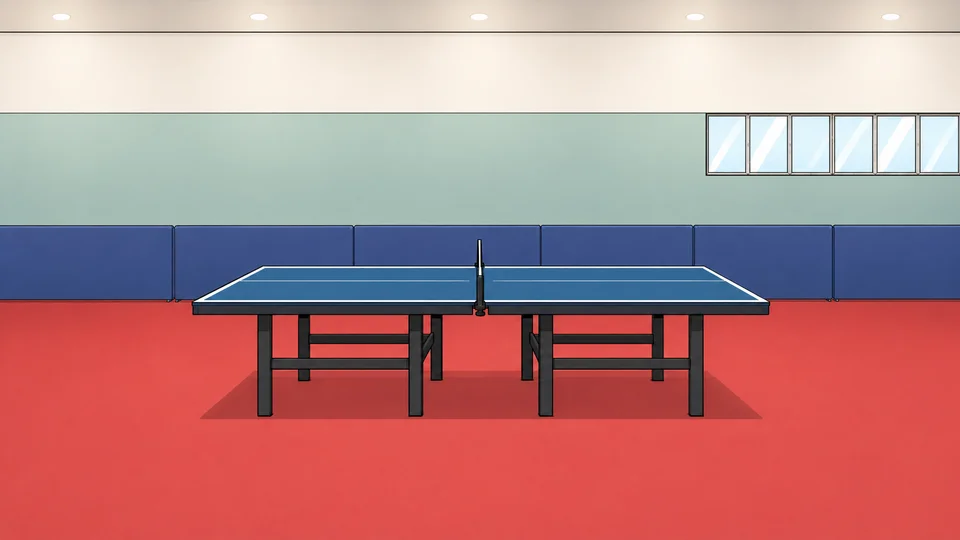
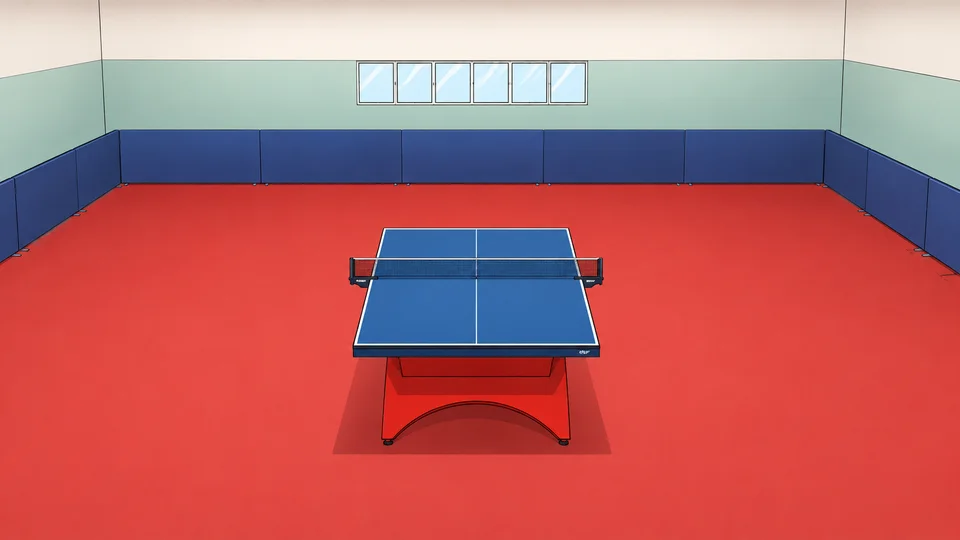
Table tennis AI Coach
Keep the racket hand and lower body unobstructed. The recommended examples show useful views of the player; the other examples hide parts of the movement. These view checks also apply to both videos in Motion Compare.
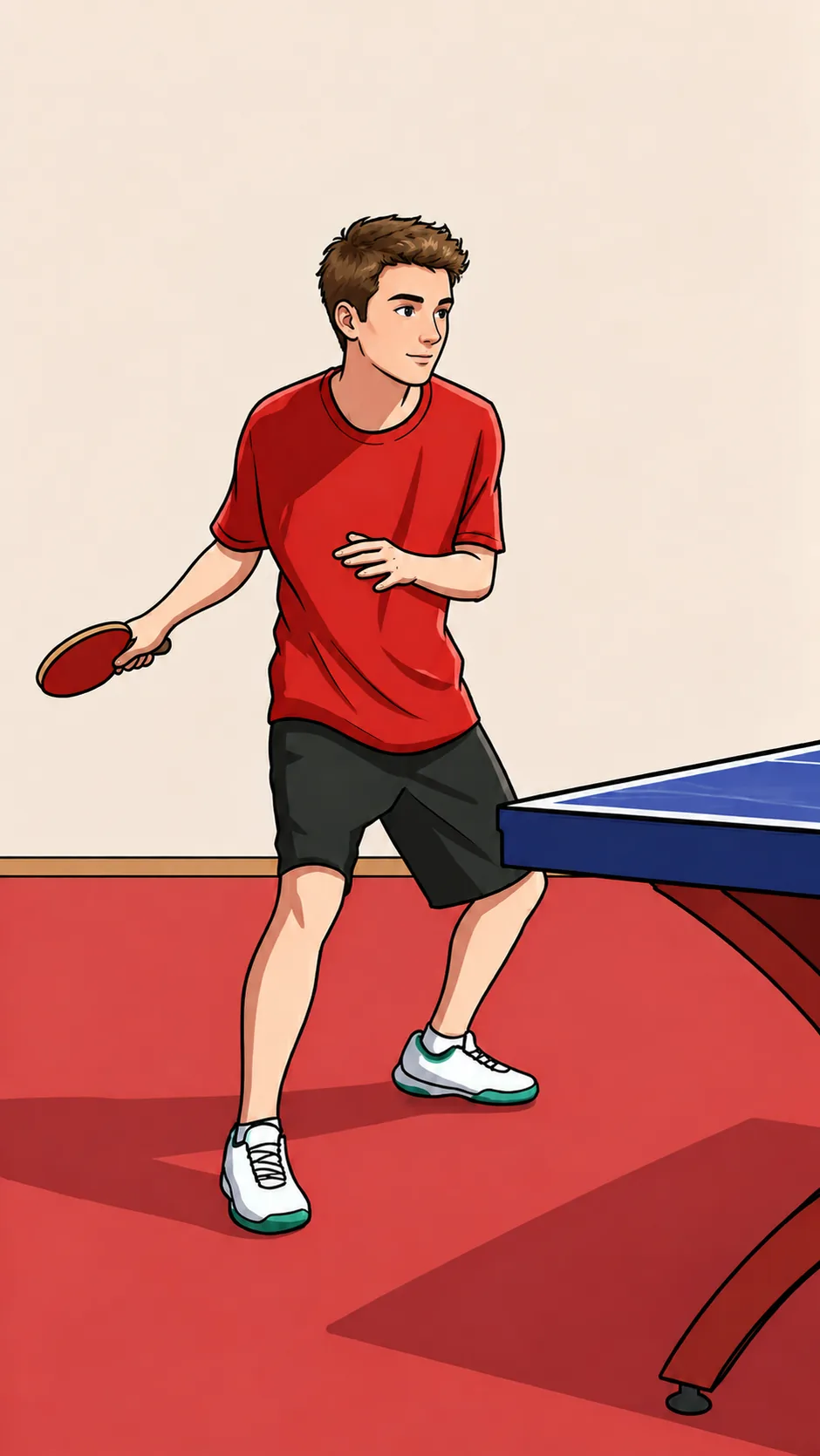
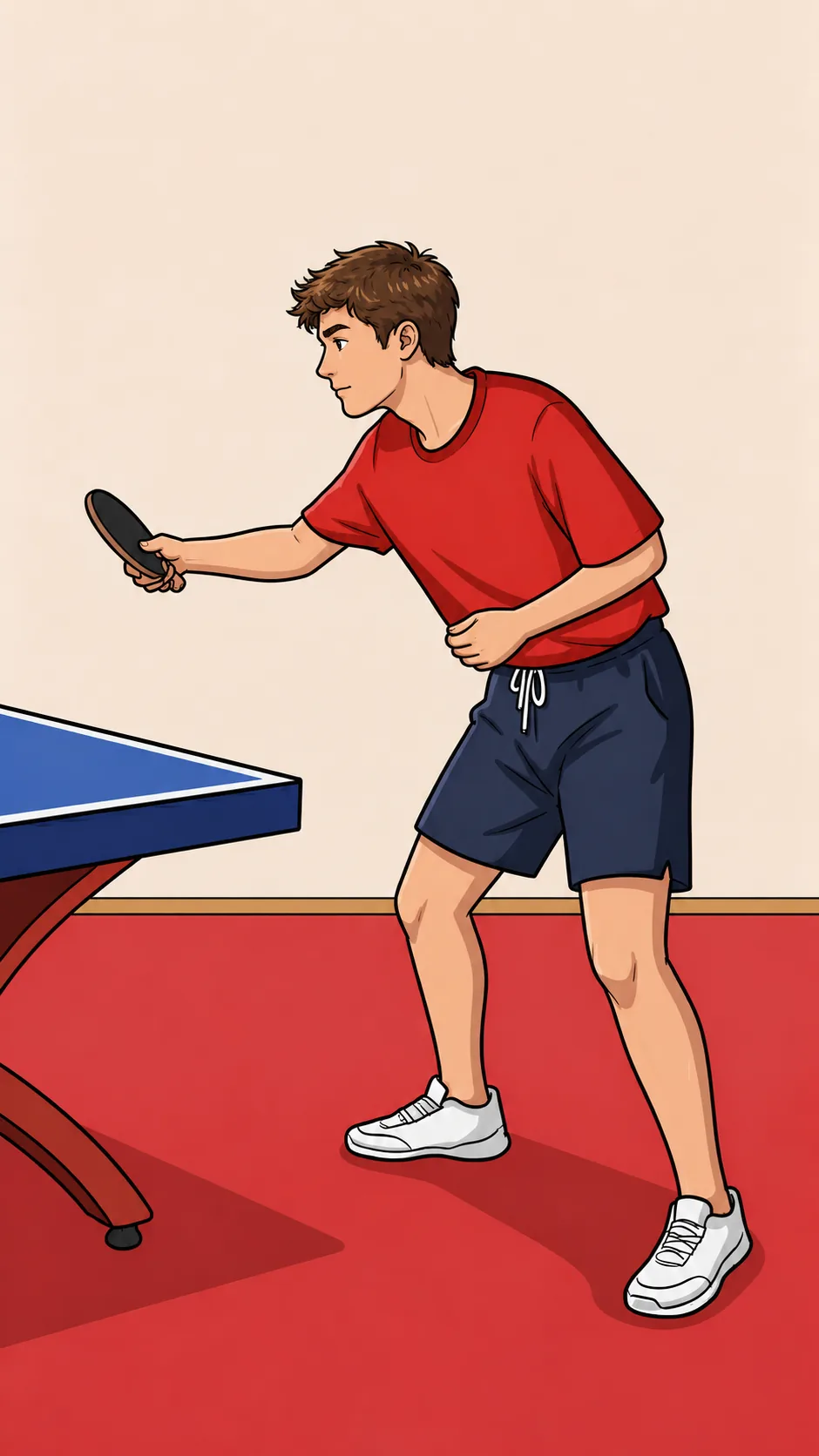
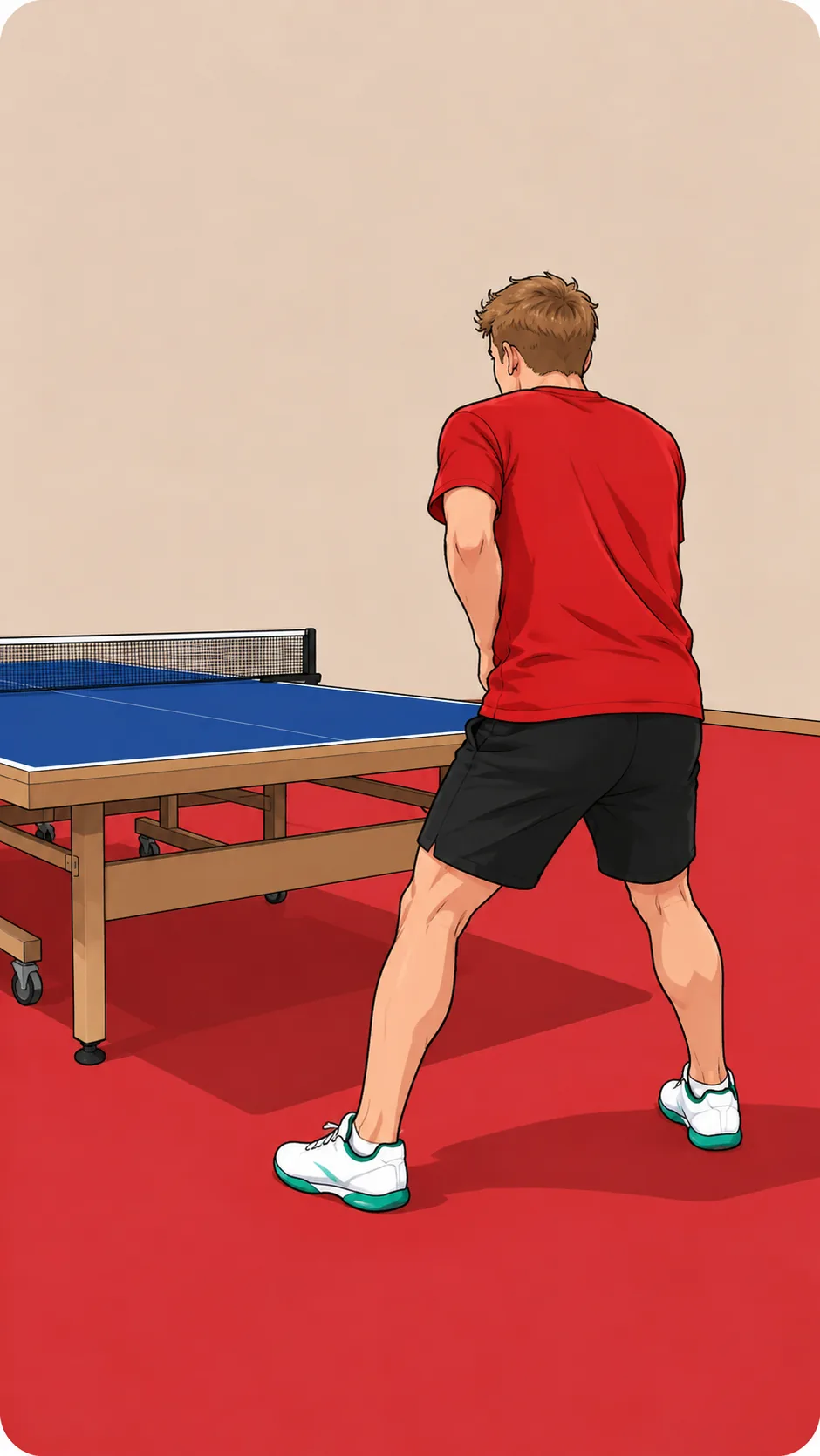
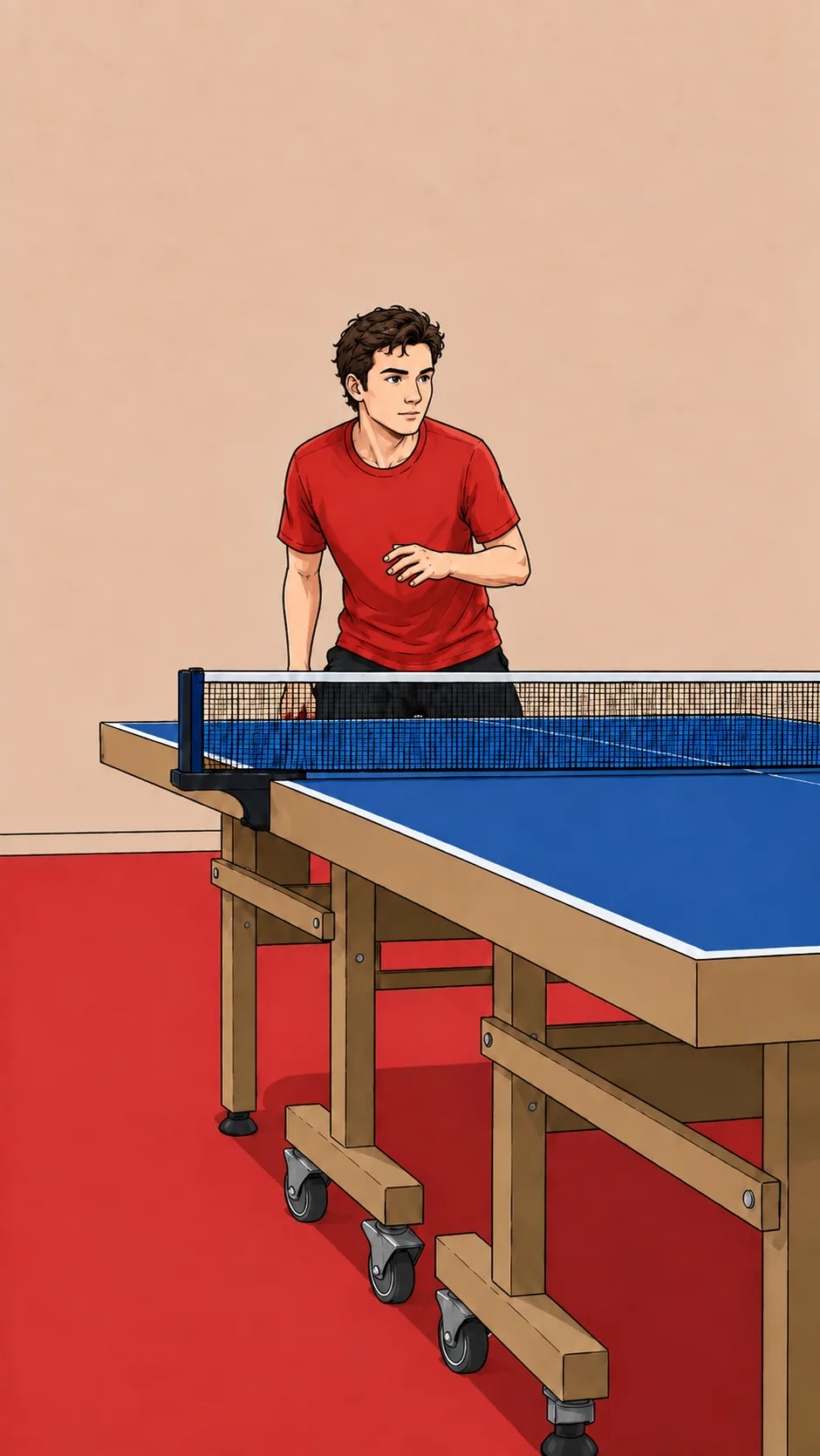
In AI Coach, choose a supported stroke, import the video, select the impact frame, and place the box around the player. Start the analysis after checking your selection.
Explore table tennis AI CoachTable tennis Match Review
Keep the camera fixed. The ball, table, and players must remain clear. Use the app’s Match Review prompts to identify the change of ends and your starting position.
If the recording does not meet these requirements, the result may be poor or processing may fail. Auto Cut is a separate option when you want rally clips and the footage meets its recording requirements.
Explore table tennis Match Review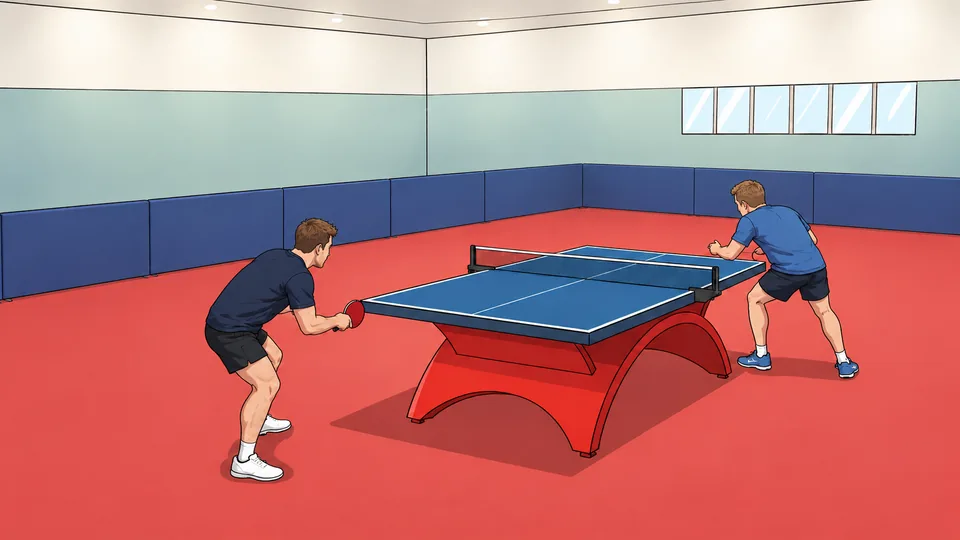
Import and check
- Choose the sport and feature in the Record tab.
- Import your recording from Photos or Files, then complete the prompts for that feature.
- When results are ready, check the detected rallies, selected movement, or match data against the original video.
- For Auto Cut, choose the clips to export. For AI Coach or Match Review, read the feedback alongside the movement or match footage.
SportArc runs on iPhone and iPad. This guide explains the process; import and analysis take place in the app.
Troubleshooting
- Missing rallies: check for obstruction and whether the ball or shuttle, playing area, and players are visible.
- Wrong setup: check the selected sport, feature, and Singles or Doubles mode where offered.
- Unclear technique: check the impact frame, player box, and whether the racket hand or lower body is hidden.
- Match Review failed: compare the footage with the fixed-camera requirements and follow the app’s guidance.
For help with video imports or processing time, visit Support. If the problem continues, contact support@sportarc.ai.
Back to the guide contents ↑