
Cut the pauses from your table tennis videos
Quickly turn your table tennis, or ping pong, recordings into rally clips with SportArc Auto Cut. Keep the points you want to replay, review with a coach, or share after a match.
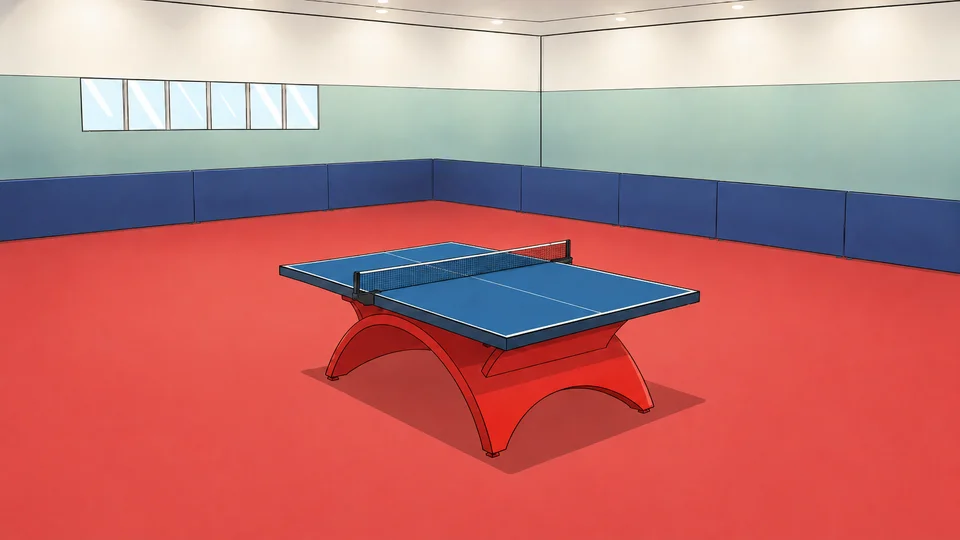
Move from a full recording to individual rallies
Repeated ball collection and pauses can make a table tennis recording slow to review. Auto Cut finds the playing segments, giving you a practical starting point for choosing and exporting rallies.
- Review the detected ralliesMove through the playing segments and check what Auto Cut has found.
- Choose what to shareSelect the clips you want to export, then share your selection after the session.
- Import your recording
- Review the rallies
- Export your selection
Choose your mode, import your video, and review the cut
-
Choose your mode
Choose Table tennis and Auto Cut in SportArc, then match the Singles or Doubles setting to your recording.
-
Import your video
Select a video you have already recorded and start processing.
-
Review your rallies
Play the detected segments and select the clips you want to keep.
-
Export and share
Export your selection to share with a training partner or coach.
Keep the ball, table, and both players visible
Choose a view that keeps the ball, the table, and the players on both sides clear. The app offers several example angles for Auto Cut. Match Review has its own fixed-camera requirements, so choose the guide for the result you want.
See the table tennis recording guide
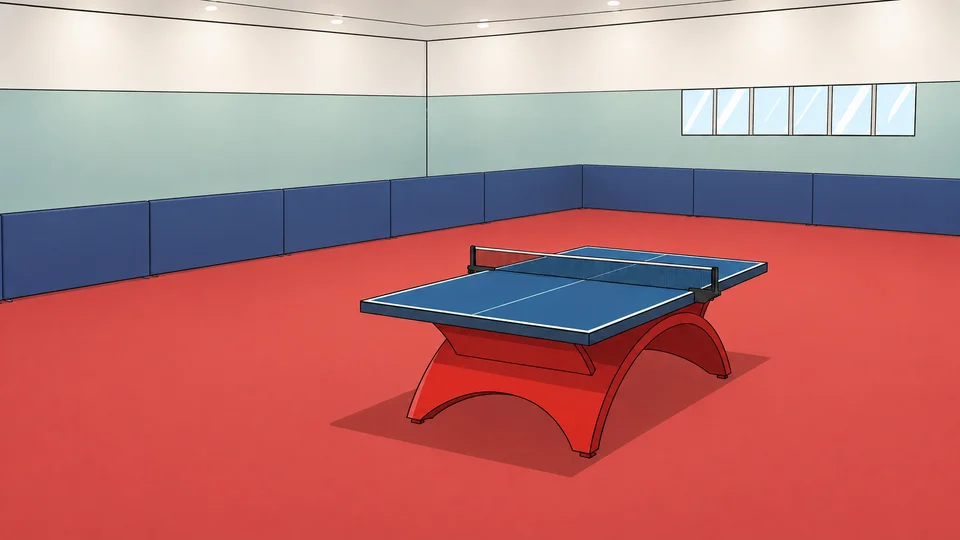
Clips, technique feedback, or match data?
Use Auto Cut when you want shorter videos. For feedback on a table tennis stroke, explore AI Coach. For placements and shot statistics across a match, explore Match Review. Each workflow has its own recording requirements.
Questions before you start
Find the workflow that fits your recording.
Does Auto Cut give me a match report?
Auto Cut focuses on rally clips. Use Match Review when you want table tennis placements and match statistics, and follow its recording requirements.
Can I select which rallies to share?
Review the detected rallies and choose your export selection in the app.
Is ping pong supported?
Yes. The table tennis Auto Cut workflow is the one to use for your ping pong recordings.
Can I get feedback on my stroke?
AI Coach is a separate table tennis workflow. Choose a supported stroke, select an impact frame, and identify the player to analyze.
Is Auto Cut completely free?
SportArc is free to download and includes in-app purchases. Check the app for current usage limits and Plus options.